
← All help articles
Media
Focal points & organizing your media library
Tag and search your assets, and set a focal point so crops always look right.
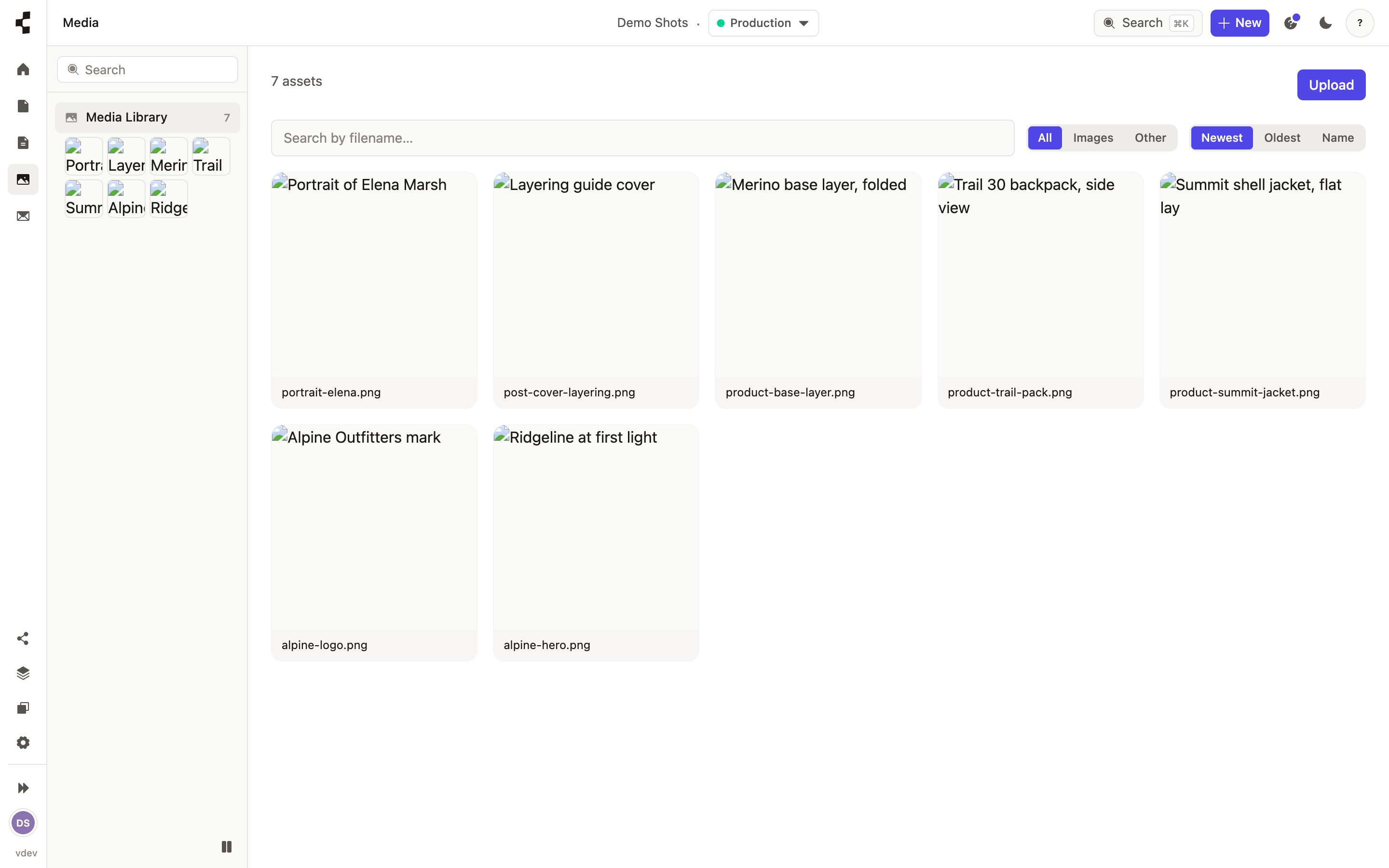
As a library grows, the search and filters at the top keep it manageable — find an image by filename, by tag, by type or by when it was uploaded. Select several at once to tag or delete them together.
Open any image to edit its alt text, caption and tags, and to set its focal point: click the spot that matters most — a face, a logo — and every automatic crop on the site keeps that spot in view, whatever shape the space is.
The detail panel also shows where an image is used, so you never delete one that is still on a live page.